


How To check My Open Orders?
_Jason
Updated at: 10 months ago
How To check My Open Orders?
In Future Trading, traders have the option to take leverage from BitTNT and open bigger positions for bigger gains. There are mainly two positions that traders can open on USDT-M Perpetual Futures, the Open Long and the Open Short. With these two position types, there are further 3 more types of orders that can be placed.
Limit Orders
Market Orders
Trigger Orders
Whenever a trader opens a new order, their open orders are available on the Future Trading interface for traders to make more informed decisions.
For BitTNT Website Users
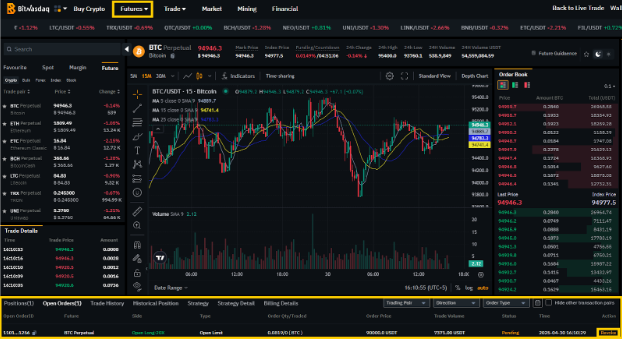
For BitTNT website users, they can check their Open Orders here:
Login to your BitTNT account on www.bittnt.top.
Scroll to the Futures option in header and select USDT-M Perpetual Futures from the menu.
Inside the Future Trade, scroll down to the section for all your Future Trade details.
Here click on the Open Orders, to check all the Future Open Orders.
Traders also have the option to close any of these orders by clicking the “Revoke” button.
For BitTNT App Users
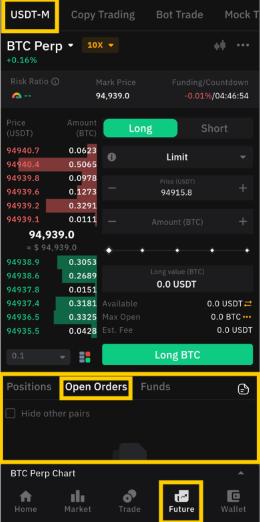
For BitTNT app users, they can check their Open Orders here:
Open the BitTNT app and login to your BitTNT account.
Once done, tap on the Future Tab on the bottom menu.
Scroll down to the section with all your Future Trade details.
Here tap on the Open Orders to check all the orders that are currently open.
Traders also have the option to close any order by tapping the “Revoke” button.
And there you have it, how to check all your open Future orders. Happy Trading!